Start here
Three steps, for any AI app. No terminal.
1. Install email-tool in your app
- Download email-tool.
You get one file,
email-tool.mcpb. - Open the file (double-click it). Claude Desktop shows an install window.
- Leave every field blank and select Install.
Claude Cowork uses what Claude Desktop installs, so it needs nothing more.
- Download the installer for your computer and open it:
- Windows: Install-email-tool.cmd. If Windows warns about a downloaded file, select Run, or More info and then Run anyway.
- macOS: Install-email-tool-macOS.zip. Open the zip, then right-click Install-email-tool.command and select Open. macOS asks once because the file comes from the internet.
- When the installer says Done, open the ChatGPT desktop app and select Plugins >
Add Marketplace. Type
skhan61/email-tooland install email-tool. - Close ChatGPT and open it again. Use Work or Codex mode; normal Chat does not reach tools on your computer yet.
- Install uv once with the installer for your computer (see the ChatGPT tab), or by hand.
-
In a terminal, add the marketplace and install the plugin:
claude plugin marketplace add skhan61/email-tool
claude plugin install email-tool@email-tool

Or type the same inside Claude Code:
/plugin marketplace add skhan61/email-tool, then/plugin install email-tool@email-tool. -
Close Claude Code and open it again.
Any app that supports the Model Context Protocol (MCP) can run email-tool. See Advanced setup.
2. Add your mailbox
In your app, type:
add my mailbox
A page opens in your browser. It runs on your computer only. If your app shows a link instead, open the link.
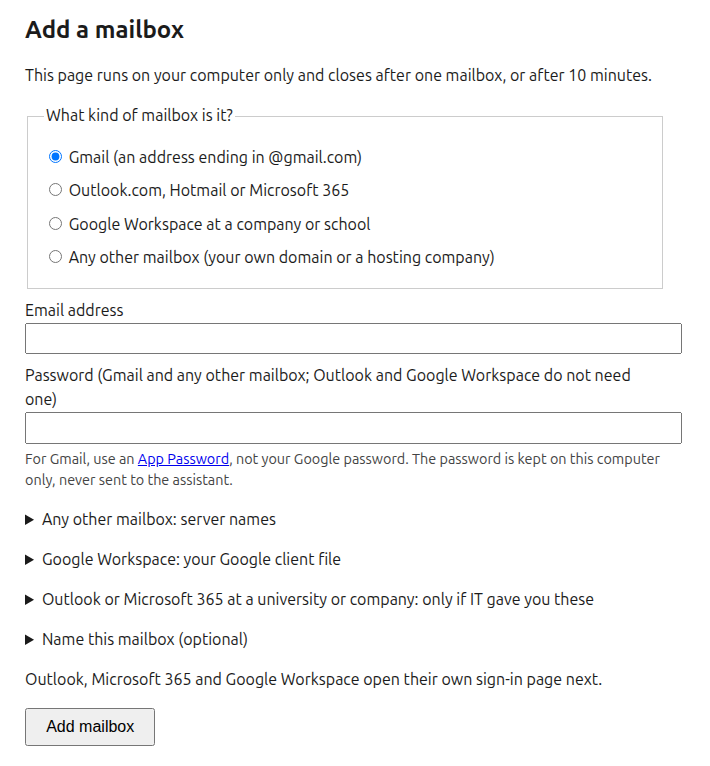
- Choose your kind of mailbox.
- Type your email address.
- Then, depending on the kind:
- Gmail: type an App Password, not your Google password. How to get an App Password.
- Outlook, Hotmail or Microsoft 365: nothing more. After you select Add mailbox,
Microsoft's sign-in page opens. Sign in and select Accept.
At a university or company, Microsoft may say Need admin approval: your IT
department must approve email-tool first. Send them the application ID
82731d7a-ac7f-4a5e-88d3-acce522f85ce. If IT gives you its own app ID or a directory ID instead, type them under Outlook or Microsoft 365 at a university or company. - Google Workspace at a company or school: ask your IT department for the client file, or create one.
- Any other mailbox: type your password and, under Any other mailbox: server names, the server names from your provider.
- Select Add mailbox. When the page says Mailbox added, go back to your app.
Your password never passes through the AI assistant. To add another mailbox, ask again.
3. Try it
- "Summarize my unread mail."
- "Draft a reply to the last message from Dana, with the report from my Downloads attached."
- "Send it." Your assistant asks you before it sends anything.
Something not working? See Troubleshooting.