Mailbox details
Most people add a mailbox on the setup page: ask your assistant to "add my mailbox" (Start here, step 2). This page has what each kind of mailbox needs, which the setup page links to, and the same steps from a terminal.
You add each mailbox once on each computer. email-tool checks that it can both read and send before it saves anything, so a typo never leaves a half-working mailbox behind.
From a terminal
-
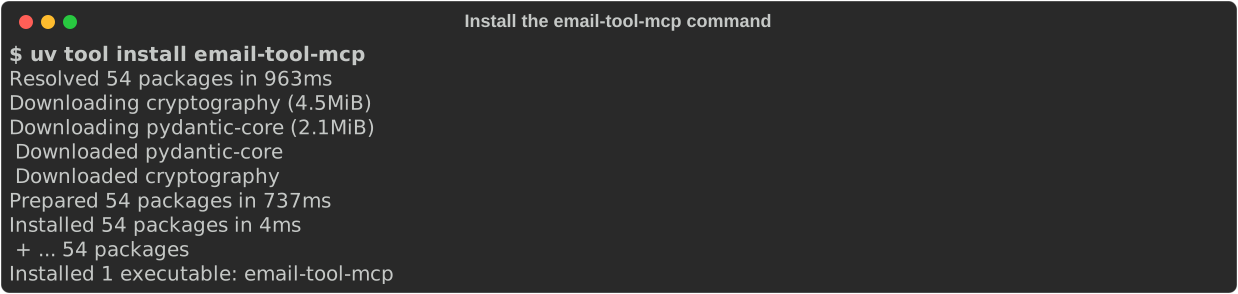
Install the
email-tool-mcpcommand once:uv tool install email-tool-mcpIt ends with Installed 1 executable: email-tool-mcp:
-
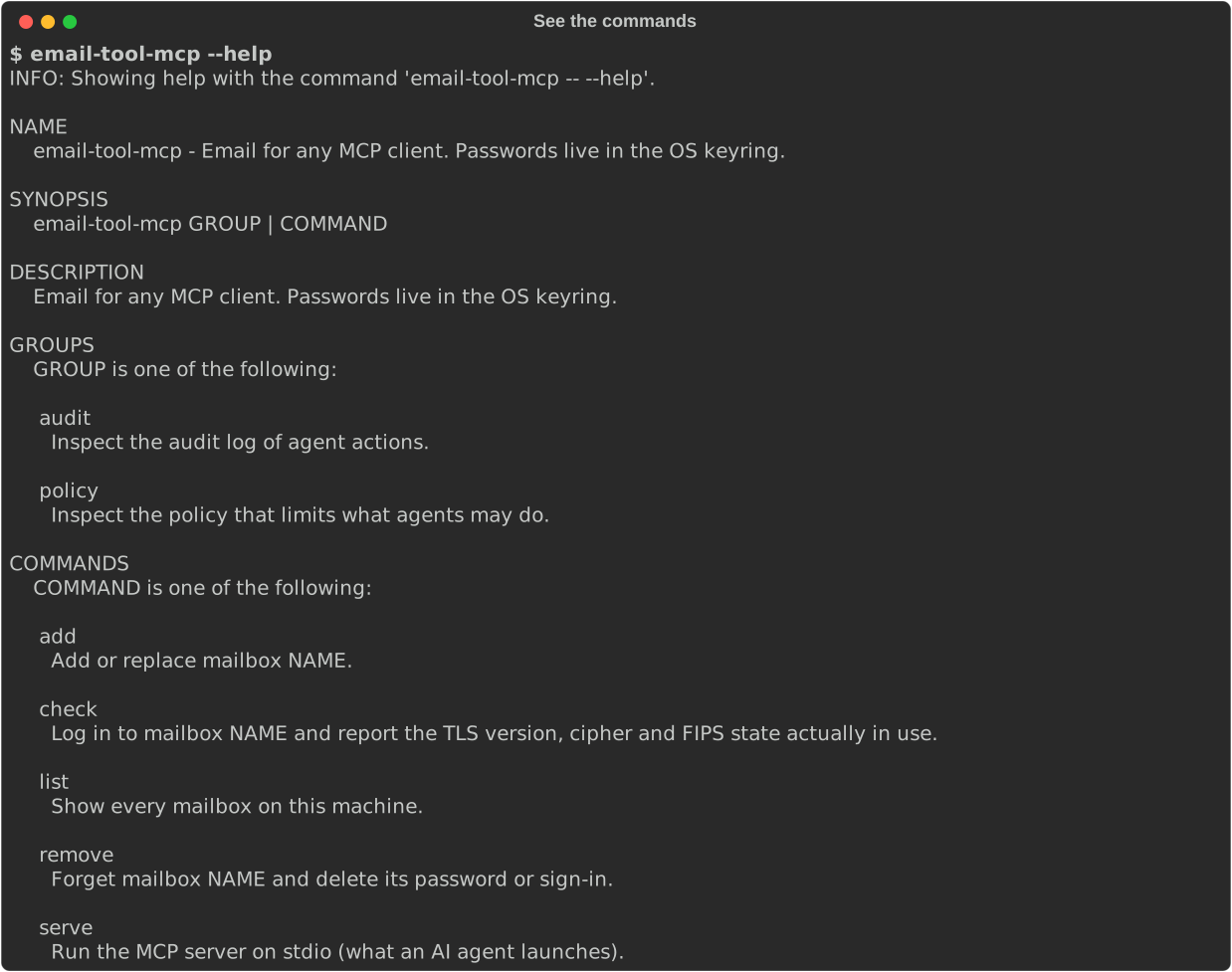
Check that the command works:
email-tool-mcp --helpYou see every command, such as add, check and list. If the help fills the window, scroll with the arrow keys and press q to close it:
If you see
email-tool-mcp: command not found, close the terminal and open a new one. -
List your mailboxes. On a new computer there are none yet:
email-tool-mcp list
Each mailbox gets a short name you choose, such as work or personal. You use that
name when you talk to your assistant ("check my work inbox").
Which account do I have?
| Your account | Section |
|---|---|
| Your own domain or a hosting company (cPanel, Fastmail and others) | Password |
Gmail (an address ending in @gmail.com) |
Gmail |
| Outlook.com, Hotmail or Live | Microsoft |
| Microsoft 365 at a company, school or any organization | Microsoft |
| Microsoft 365 GCC High | GCC High |
| Google Workspace at a company, school or any organization | Google Workspace |
Not sure? Ask your IT department, or look up your domain's mail records at
mxtoolbox.com: google.com means Google and outlook.com means
Microsoft.
Password
For mail hosted with your own domain or a hosting company.
- Find the IMAP and SMTP server names in your provider's help pages or your mail app's
settings, for example
mail.example.com. -
Run:
email-tool-mcp add work -
Enter your address, the IMAP server, the SMTP server, and your password when asked. The password is hidden as you type.
The password goes into your operating system's keyring (Windows Credential Manager, macOS
Keychain or GNOME Keyring). To use other ports, add --imap-port 993 --smtp-port 587.
Gmail
Gmail accepts an App Password, a 16-letter password made for one app.
- Turn on 2-Step Verification for your Google account, if it is off.
-
Go to myaccount.google.com/apppasswords. Google may ask for your password first. Type
email-toolas the App name and select Create: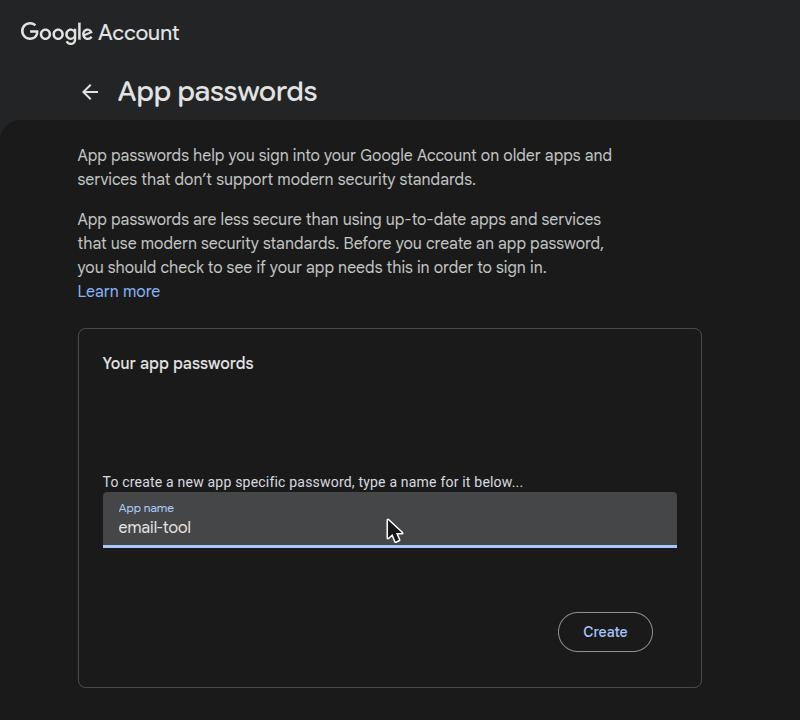
-
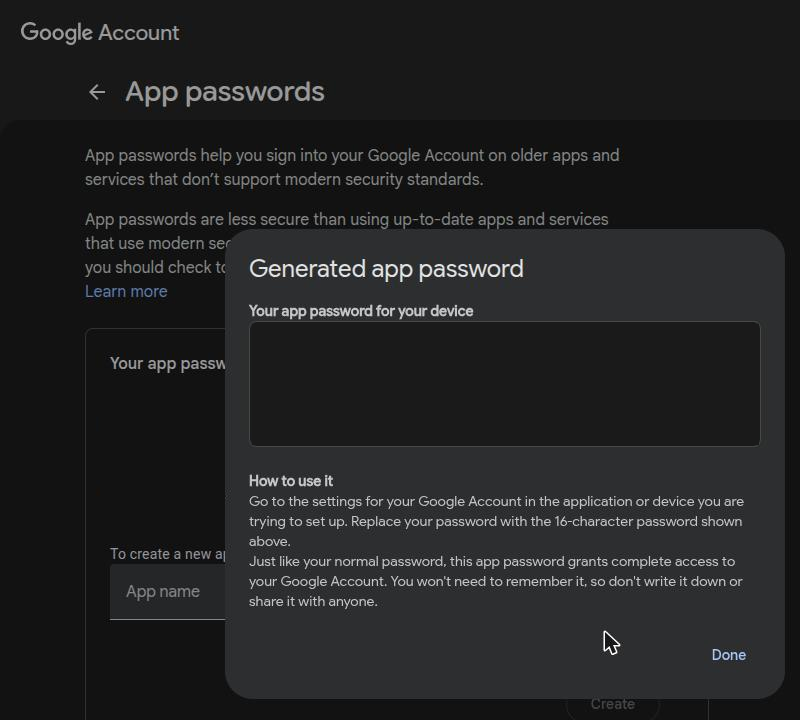
Google shows your App Password in the box: four groups of four letters (hidden in this picture). Copy it, then select Done. Google shows it only once.
-
Run the command below and paste the App Password when asked:
email-tool-mcp add personal
The Gmail servers are filled in for you. If App Passwords is missing from your account, your account belongs to an organization that turned them off: use Google Workspace instead.
Microsoft
For Outlook.com, Hotmail, Live and Microsoft 365. No password is stored.
-
Run, with your address:
email-tool-mcp add work --auth microsoft --address you@company.com -
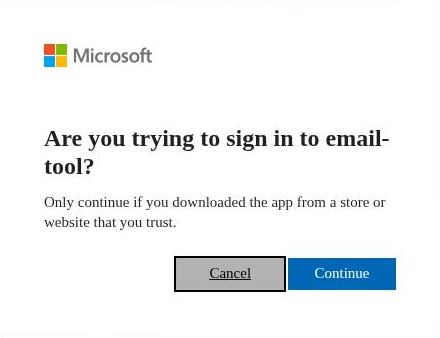
Your browser opens on Microsoft's sign-in page. Sign in. Microsoft may first ask Are you trying to sign in to email-tool? Select Continue, the blue button:
-
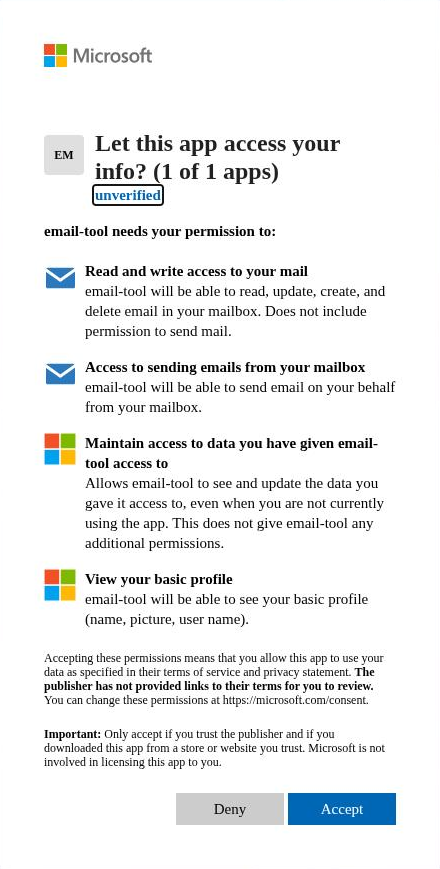
Microsoft then asks Let this app access your info? and lists what email-tool may do: read and write your mail, send mail, keep access, and see your basic profile. Microsoft marks the app unverified because no company publisher is registered for it; that is expected. Select Accept:
If you approved email-tool before, Microsoft skips this screen.
-
Return to the terminal. It prints
Mailbox 'work' ... addedwhen both the reading and the sending checks pass.
The sign-in is kept encrypted on your computer and renews itself. If it ever expires, your assistant tells you the command to run again.
If your account belongs to several Microsoft 365 organizations, add
--tenant <directory ID> to sign in to one of them (on the setup page: Directory (tenant) ID). Your IT department can give you the
directory (tenant) ID.
If no browser opens, the terminal prints the Microsoft sign-in address instead. Open it in
a browser on any computer, sign in, and paste back the address the browser ends on (it shows
"This site can't be reached"). Add --paste-address to work this way from the start, or
--device-code to sign in with a code at microsoft.com/devicelogin.
If you see "Need admin approval", your organization lets only IT approve apps. Ask your
IT department to grant admin consent to email-tool, application ID
82731d7a-ac7f-4a5e-88d3-acce522f85ce, or to give you the ID of the organization's own app
(see For administrators), which you add with
--client-id <id> (on the setup page: App (client) ID).
GCC High
GCC High uses a separate Microsoft cloud, so it needs an app registered in your GCC High tenant. Your IT department registers it (steps) and gives you its Application (client) ID. Then run:
email-tool-mcp add work --auth microsoft --cloud gcc-high --client-id <app id> --address you@agency.gov
Google Workspace
For Google accounts at a company, school or any organization whose administrator turned off App Passwords. Google requires a small sign-in client for this, which you create once. If your IT department already gave you a client file, skip to Sign in.
Create the sign-in client
Use any Google account you own for these steps, for example a personal Gmail.
- Go to console.cloud.google.com/projectcreate,
name the project
email-tool, and select Create. - Go to Google Auth Platform and select Get started:
- App name:
email-tool - User support email: your email
- Audience: External (or Internal if you are the administrator of the Workspace organization: no warning screen and no user limit)
- Contact information: your email
- Accept the policy and select Create.
- App name:
- External only: go to Branding, fill in an application home page and a privacy policy link of your own, add their domain under Authorized domains, and select Save. Then go to Audience and select Publish app, then Confirm. The status changes to In production. Until you publish, sign-ins end after 7 days, and you must add each account under Test users.
- Go to Clients > Create client, choose Desktop app, name it
email-tool, and select Create. - Select Download JSON right away. The file name starts with
client_secret_. Keep it private, and keep it: Google shows the secret and the download only once, when you create the client.
If you lost the file, open Clients, select your client, and select the ⓘ button (Additional information). Under Client secrets, select Add secret, then the download button next to the new secret. When email-tool works with the new file, select Disable and then the delete button next to the old secret.
Sign in
-
Run, with your address and the downloaded file:
email-tool-mcp add work --auth google --address you@company.com --client-secrets ~/Downloads/client_secret_....json -
Your browser opens. Choose your account.
-
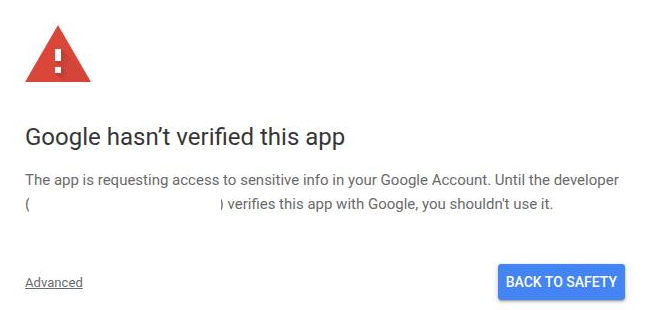
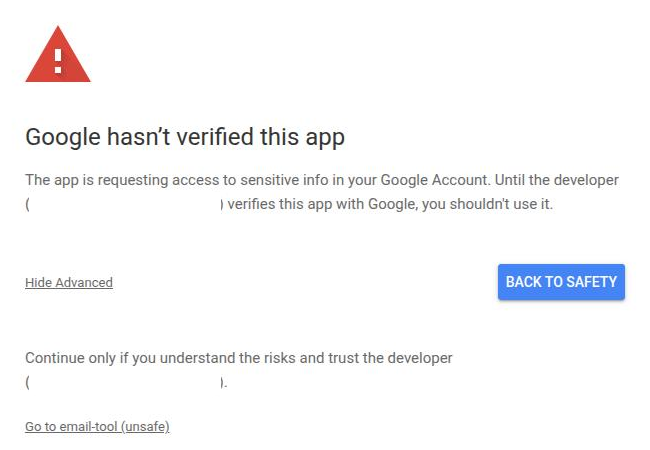
For an External client, Google shows Google hasn't verified this app, with your own address as the developer (hidden in the pictures below). It is your own app. Select Advanced:
Then select Go to email-tool (unsafe):
-
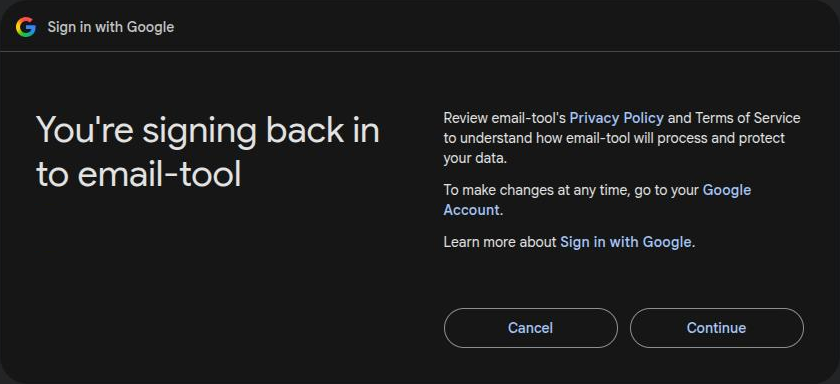
Google asks you to continue to email-tool: Sign in to email-tool the first time, or You're signing back in to email-tool, as here, if you used it before. Select Continue:
-
Google shows email-tool wants access to your Google Account. The first time, it lists each permission: leave every one selected, because reading and sending through IMAP and SMTP needs full mail access. If you signed in before, it says email-tool already has some access instead. Select Continue.
-
The browser shows "The authentication flow has completed". Return to the terminal, which prints
Mailbox 'work' ... added.
If your browser is on another computer, or shows "This site can't be reached" after you
allow access, run the command again with --paste-address. Open the address it prints,
sign in, and paste back the address the browser ends on.
If you see "Access blocked", your organization blocks apps it has not approved. Ask your IT department to allow your client, or to create an Internal client for you.
Check and manage your mailboxes
email-tool-mcp list           # every mailbox and whether it can log in
email-tool-mcp check work     # log in now and show the encryption in use
email-tool-mcp remove work    # delete the mailbox and its password or sign-in