Advanced setup
For developers and IT. Most people need only Start here, which installs email-tool in every app without a terminal.
This page covers what Start here does not: installing uv by hand, connecting an app through its configuration file instead of a plugin, ChatGPT Business and Enterprise, other MCP apps, and updating or removing email-tool.
Install uv by hand
uv is a free tool from Astral that downloads and runs Python programs. You install it once.
Open PowerShell and run:
powershell -ExecutionPolicy ByPass -c "irm https://astral.sh/uv/install.ps1 | iex"
Open Terminal and run:
curl -LsSf https://astral.sh/uv/install.sh | sh
Open a terminal and run:
curl -LsSf https://astral.sh/uv/install.sh | sh
The installer ends with everything's installed!:
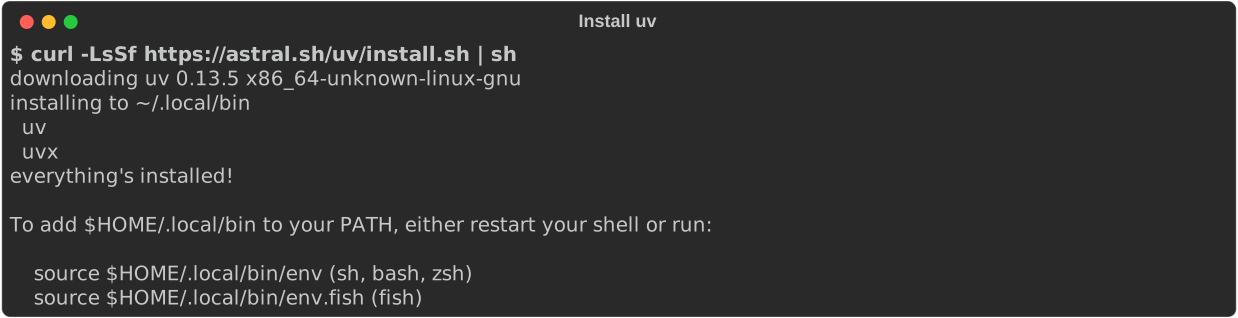
Close and reopen the terminal, then check that it works:
uvx --version

If the terminal says it cannot find uvx (command not found, or on Windows
The term 'uvx' is not recognized), it has not picked up the new folder yet. Close every
terminal window and open a new one. On macOS and Linux you can instead run
source $HOME/.local/bin/env in the open terminal (source $HOME/.local/bin/env.fish in fish).
Desktop apps on macOS
Apps you open from the Dock do not see your terminal's settings, so they may not find
uvx. Where a step below asks for the full path, run which uvx and use what it prints,
usually /Users/<you>/.local/bin/uvx.
Connect through a configuration file or command
Use these when a plugin or bundle is not an option, for example when IT manages the app's settings.
- In Claude Desktop, select Settings > Developer > Edit Config.
-
Add this server, then save and restart Claude Desktop:
{
  "mcpServers": {
    "email": {
      "command": "uvx",
      "args": ["email-tool-mcp", "serve"]
    }
  }
}
On macOS, replace uvx with its full path. Claude Cowork uses the servers Claude Desktop
runs, so it needs nothing more.
codex plugin marketplace add skhan61/email-tool
codex plugin add email-tool@email-tool
If the email tools do not appear on macOS, add the server by hand in
~/.codex/config.toml, with the full path to uvx:
[mcp_servers.email]
command = "/Users/you/.local/bin/uvx"
args = ["email-tool-mcp", "serve"]
OpenAI's Secure MCP Tunnel carries ChatGPT's requests to email-tool on your computer over an outbound connection. No port is opened, and your passwords stay in your keyring.
- At platform.openai.com, select Settings > Tunnels and create a tunnel for your ChatGPT workspace. You need the Tunnels Manage role.
-
On your computer, run:
tunnel-client init --sample sample_mcp_stdio_local --profile email \ --tunnel-id <tunnel_id> \ --mcp-command "uvx email-tool-mcp serve" tunnel-client run --profile email -
In ChatGPT, select Settings > Connectors > Add, choose Connection: Tunnel, and pick your tunnel.
Warning
While tunnel-client run is running, the connector can read, send and delete mail
in every mailbox you added. Do not share the connector with other workspace members,
and stop the tunnel when you finish.
Add a local (stdio) server that runs this command:
uvx email-tool-mcp serve
After connecting, ask your assistant to "add my mailbox", or add mailboxes from a terminal as in Mailbox details.
Update or remove
- Update a plugin: update email-tool from your app's plugin manager when a new version is released.
-
Update a config-file setup: run this once, then restart your app:
- Remove a mailbox:uvx --refresh email-tool-mcp --helpemail-tool-mcp remove <name>deletes its settings and its password or sign-in. - Remove email-tool: remove the plugin or the server entry from your app, then remove each mailbox as above.